Make a Drink Controls & HUD
Read tickets faster, find every station prompt, and pour cleanly on PC or mobile.
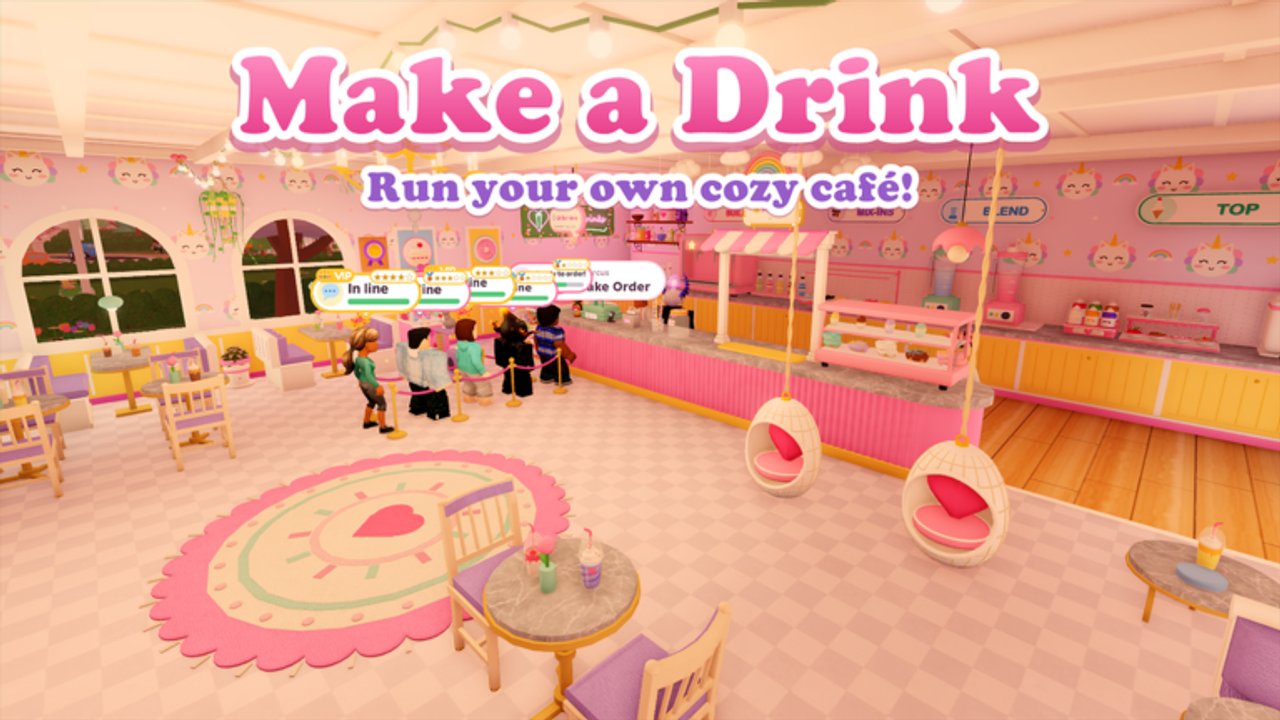
Confused by the café HUD in Make a Drink on Roblox? This controls guide explains how to read tickets, navigate stations, and pour accurately on PC and mobile. Make a Drink (released 21 October 2026, place 131660071022768, universe 10772169253) is a cozy Simulation/Tycoon café with a six-player server cap. Your job is to take cute orders, choose S/M/L cups, pour bases to the fill line, pump syrups, add ice and cream, drop boba/jelly/pudding, blend or keep layers, then finish toppings and serve for tips. None of that works if you misread the ticket or fight the camera.
Pair this page with getting started for the day-one loop, perfect pour for fill-line technique, and maximize tips once controls feel invisible.
Ticket reading — do this before every grab
Open the customer ticket and scan top to bottom:
- Cup size — S, M, or L. Confirm before you touch a vessel.
- Cup style — standard vs unlocked specialties (kitty cups and galaxy glassware appear later).
- Base / fill — pour until the liquid meets the marked line.
- Flavor syrups — strawberry, vanilla, pumpkin spice, and seasonal bottles; count pumps exactly.
- Ice — present or absent; do not invent ice “for freshness.”
- Cream amount — light, standard, or heavy when the ticket distinguishes amounts.
- Add-ins — boba, jelly, pudding, or event bits (candy corn, ghost marshmallows, mango, marshmallow).
- Texture — blend smooth, blend chunky, or preserve layers.
- Finishes — whipped cream seating, sauce drizzle, sprinkles, macarons, mini donuts, glazes.
If an icon is unfamiliar after a patch, finish the rush, then check recipes and seasonal treats rather than guessing mid-serve.
Station map (mental model)
Think of the café as four zones:
| Zone | What you do there |
|---|---|
| Order / ticket point | Read and claim the next customer |
| Mixing bar | Cup select, base pour, syrup pumps, ice |
| Blender | Smooth or chunky textures; skip for many layered builds |
| Topping tray | Cream, drizzle, toppings, final inspection |
Handoff is a walk path, not a fifth craft station — keep it clear so finished drinks leave your hands fast. Layout tips live on café decoration; hire coverage when one person cannot staff every zone (hire staff).
PC controls & tips
- Use precise feathering on the pour input as the liquid nears the fill line.
- Reposition the camera so the fill line sits in the center of the screen before you start pouring.
- Click syrup pumps deliberately; double-clicks from lag still count as extra pumps.
- Keep the ticket UI visible while moving between mixing bar and topping tray — reopening it mid-blend saves wrong textures.
- Bind or remember your interact key so you are not hunting prompts during a six-player rush.
Desktop advantage is fine motor control. Use it for cream amounts and drizzle lines that mobile players find fiddly.
Mobile controls & tips
- Prefer short tap bursts near the top of the pour instead of one long hold that overshoots.
- Rotate the camera with a drag before pouring if the fill line is occluded by the cup rim.
- Zoom out slightly in crowded lobbies so you can see both the ticket widgets and the customer queue.
- Watch for fat-finger syrup pumps — pause a beat between pumps when strawberry and vanilla bottles sit side by side.
- If UI buttons overlap after a patch, leave and rejoin once; then report persistent bugs via official channels linked from the wiki links hub.
Mobile disadvantage is occlusion and accidental taps. Compensate with slower final pours and a habit of re-checking cream before you leave the topping tray.
HUD elements worth memorizing
- Codes button — usually near shop/settings; still present even when no codes are active (codes).
- Shop / unlock panels — flavors, toppings, cups, décor, staff, and upgrades such as Robo Barista.
- Level / XP readout — tracks the 100+ level climb (leveling guide).
- Tip popup — your immediate feedback loop; low tips mean reread the last ticket fields.
- Special / critic indicators — slow down when these appear; rewards pay for careful HUD reading.
Common control mistakes
| Mistake | Fix |
|---|---|
| Grabbing a cup while skimming the ticket | Full read first, then interact |
| Pouring with the fill line off-screen | Rotate/zoom, then pour |
| Holding pour until overflow on mobile | Burst taps near the line |
| Blending before confirming texture | Re-open ticket one second |
| Blocking teammates at the syrup rack | Call your station; share space |
Practice drills for control confidence
- Ten tickets where you only optimize ticket reading time — no rushing the pour.
- Ten pours focused solely on keeping the fill line centered on screen.
- Ten mobile or trackpad sessions emphasizing cream amount precision.
- One rush where you refuse to start a drink until every HUD field is spoken aloud.
- Graduate to tip optimization on maximize tips.
Accessibility & comfort
If syrup colors are hard to tell apart, rely on bottle order and ticket text rather than hue alone. Seasonal bottles rearrange — re-learn positions after updates summarized on updates. Reduce camera shake by standing square to the mixing bar instead of pouring while strafing.
Related wiki pages
The embedded gameplay video mid-article shows stations in motion — pause on the ticket UI, match what you see in your lobby, then resume. Once controls disappear into muscle memory, Make a Drink becomes a cozy rhythm game where every S/M/L choice and cream amount is automatic — and that is when tips climb.
Frequently Asked Questions
Quick answers for new baristas and cafe owners.
Where do I see cup size on the Make a Drink ticket?
Size (S/M/L) appears on the customer ticket before you grab a cup. Confirm it first — a perfect pour in the wrong size still fails.
Why do I keep overshooting the fill line on mobile?
Long holds carry momentum past the line. Use shorter tap bursts near the top and center the fill line on screen before pouring.
How do I know whether to blend?
Read the texture field on the ticket: smooth, chunky, or layered. Re-open the ticket if the HUD closed before you reached the blender.
Where is the Codes button?
Usually near the shop or settings cluster in the café HUD. It stays available even when no codes are active — check the Codes Hub for status.